 EstateMate
Add or change your vehicles
Add your household's cars under Vehicle Information in the menu. They count for estate access as soon as you save them.
- Open the menu on your home screen and tap Vehicle Information.
- Tap Add Vehicle and add the make, model, year, registration number and colour.
- Vehicles count for estate access straight away. Edit with the pencil, remove with the bin.
Add or change your vehicles
Keep the cars in your household on your profile. They count for estate access as soon as you save them.
- Open Vehicle Information. In the menu on your home screen.
- Tap Add Vehicle. At the bottom of Vehicle Info.
- Add the details. Make, model, year, plate and colour.
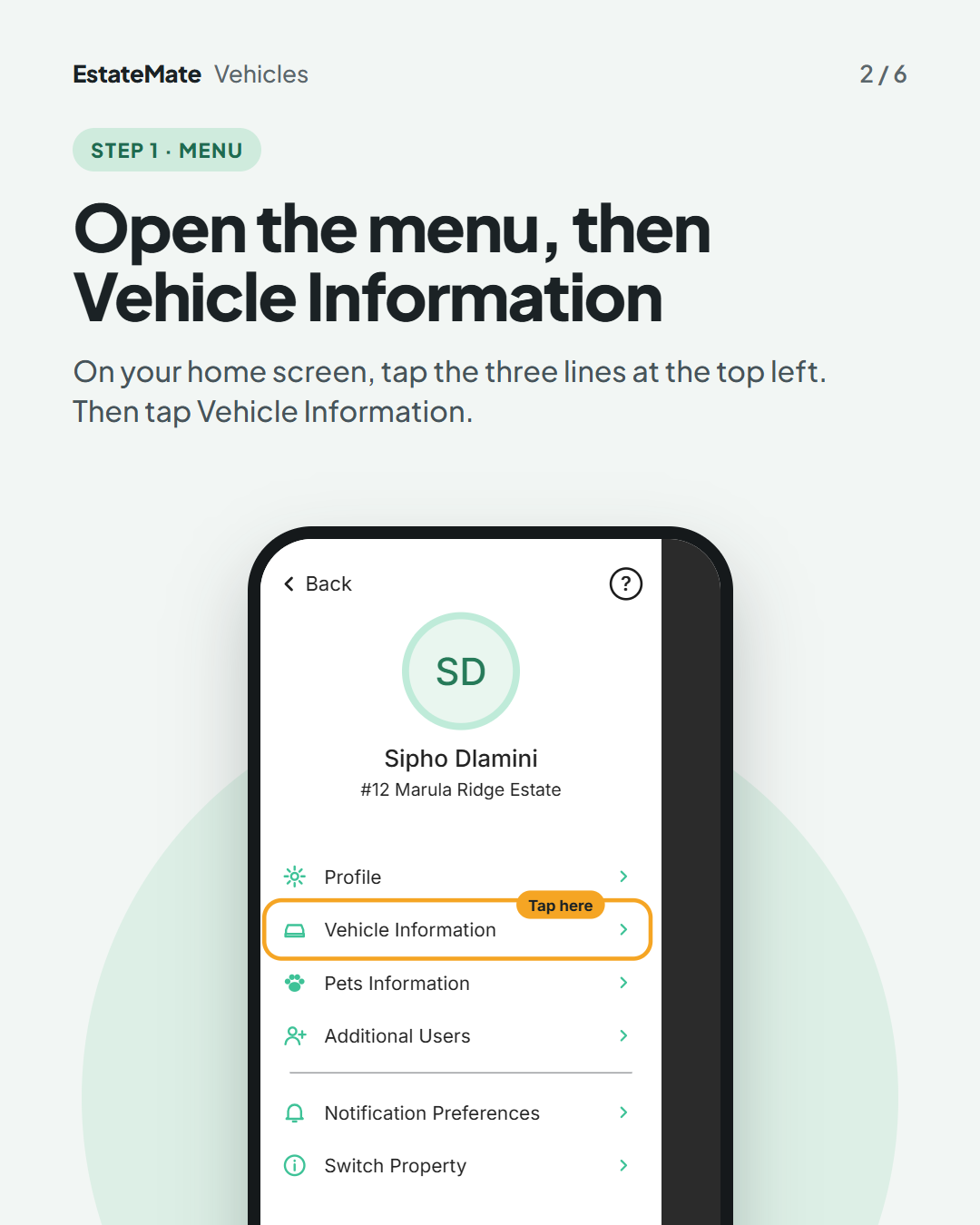
Step 1: open the menu, then Vehicle Information
On your home screen, tap the three lines at the top left. Then tap Vehicle Information.
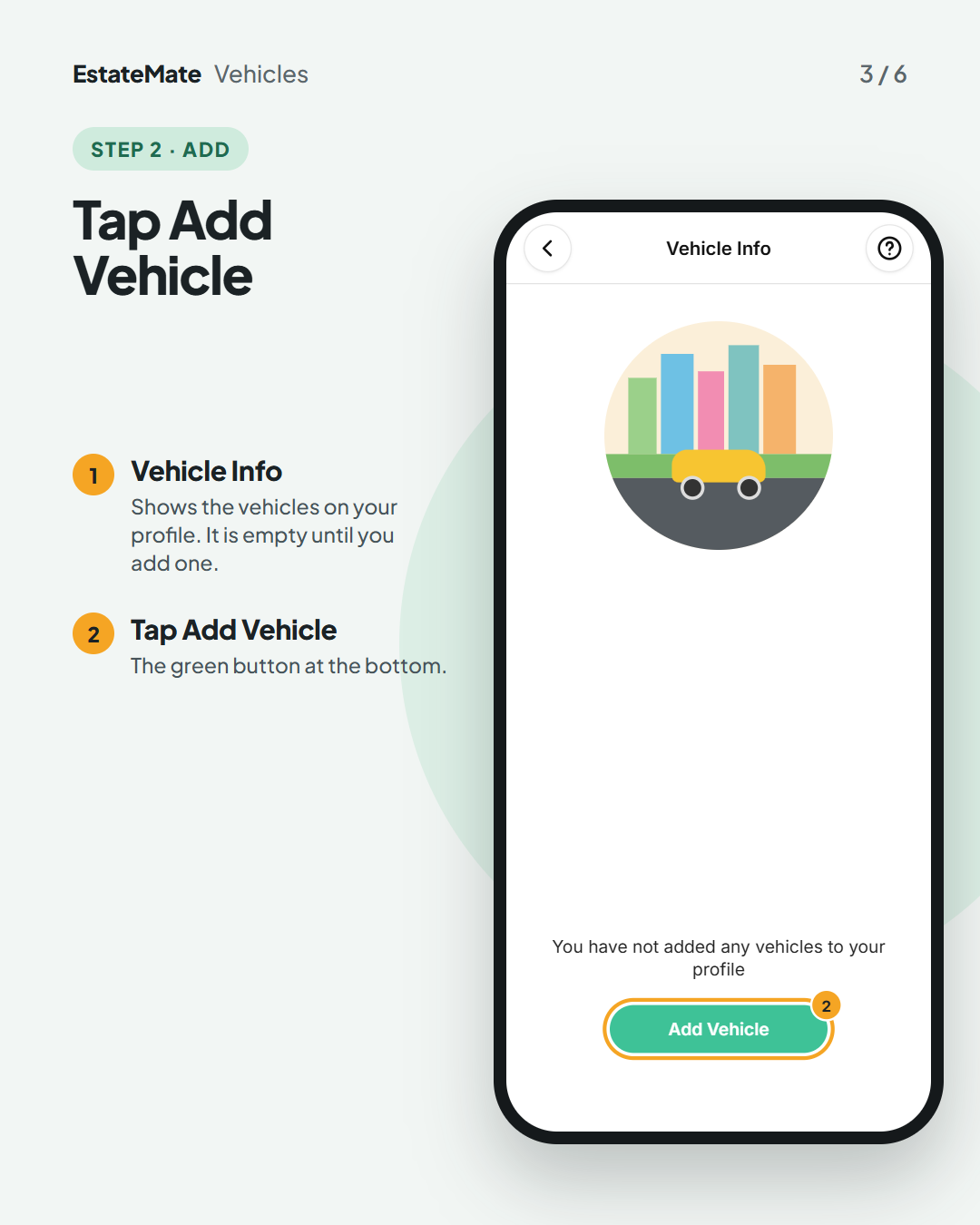
Step 2: tap Add Vehicle
Vehicle Info shows the vehicles on your profile. It is empty until you add one. Tap Add Vehicle at the bottom.
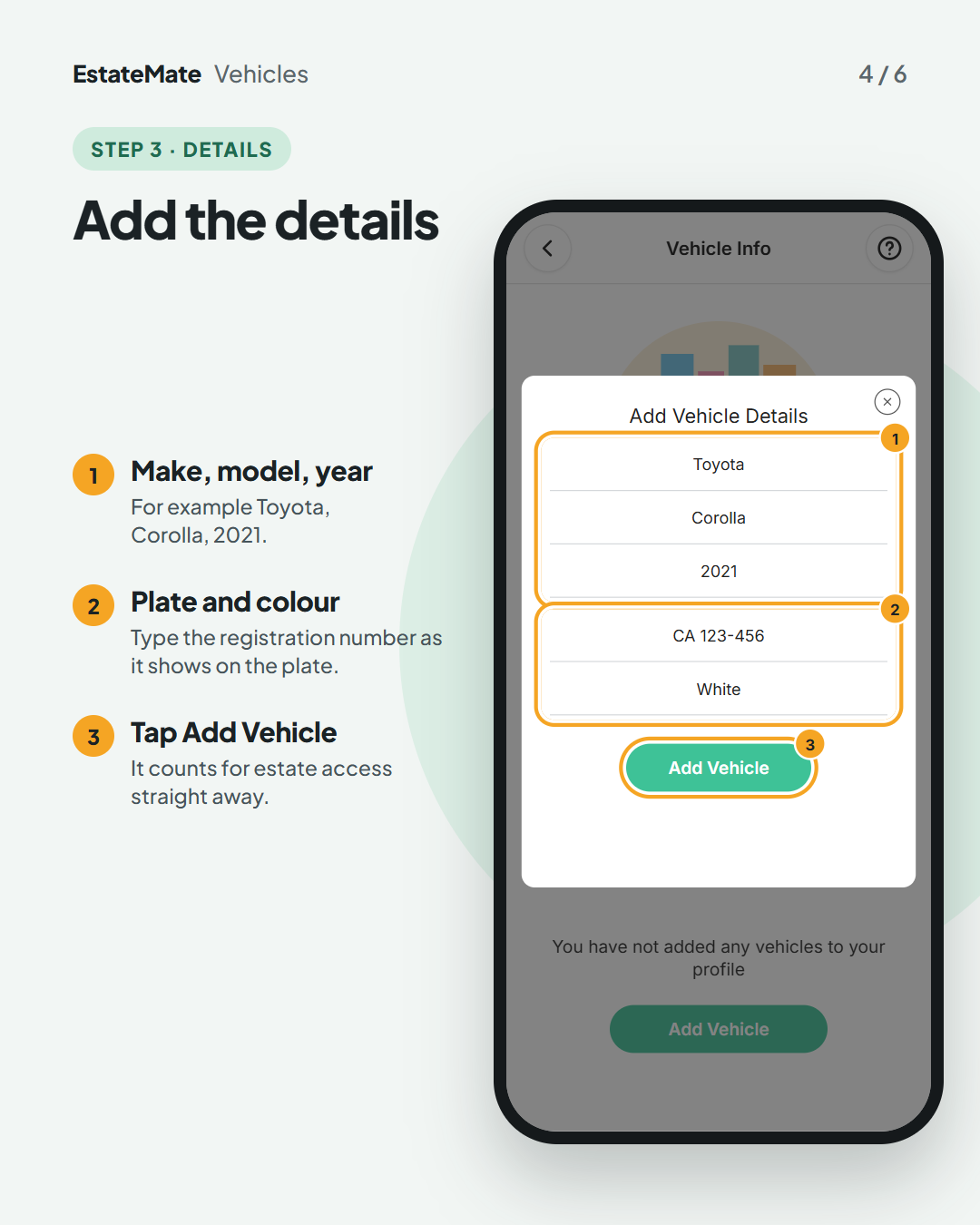
Step 3: add the details
- Type the make, model and year.
- Add the registration number, as it shows on the plate, and the colour.
- Tap Add Vehicle. It counts for estate access straight away.
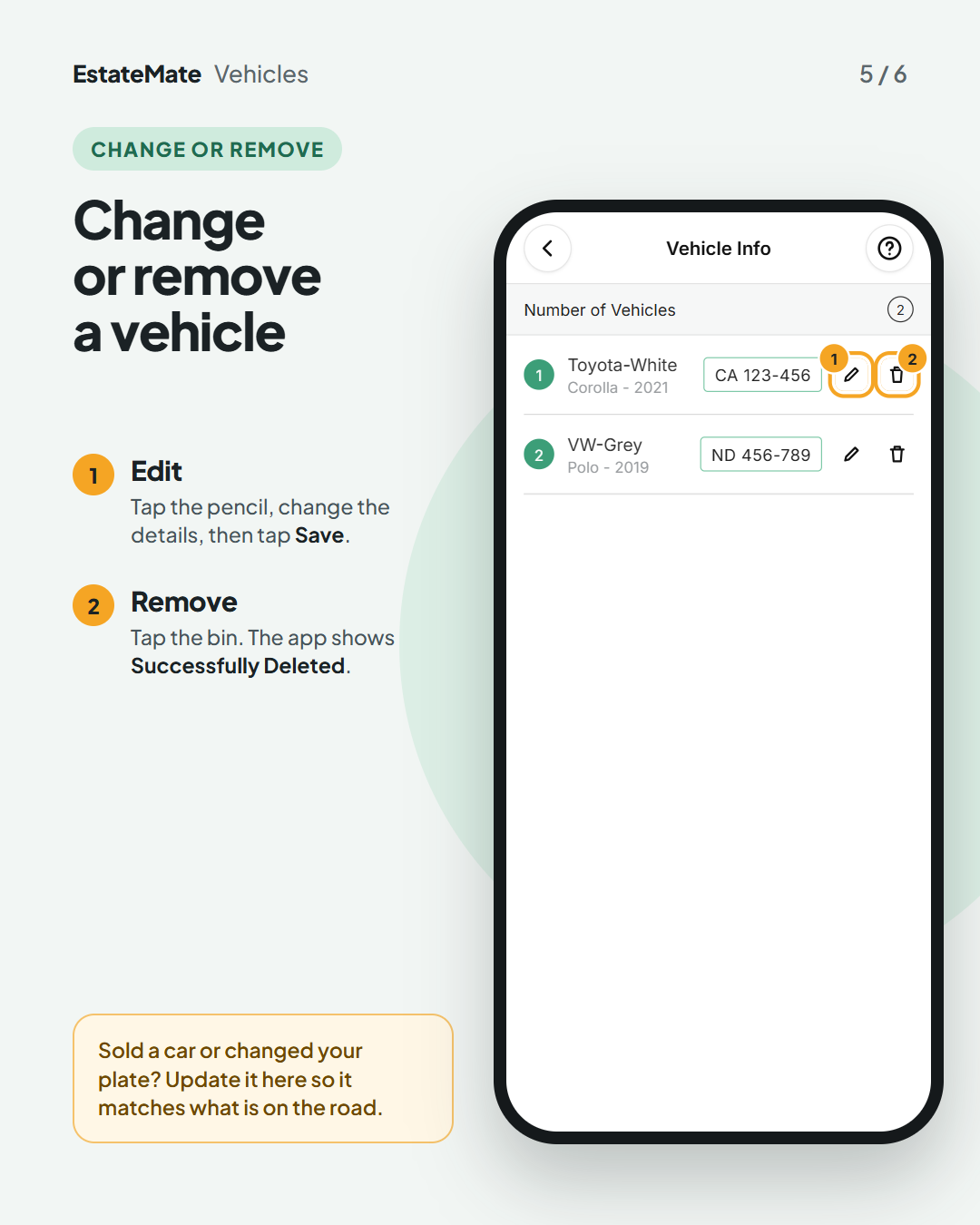
Change or remove a vehicle
- Edit: tap the pencil, change the details, then tap Save.
- Remove: tap the bin. The app shows Successfully Deleted.
Sold a car or changed your plate? Update it here so it matches what is on the road.
We're listening
We don't always get it right first time. Building something flexible enough for hundreds of communities, each with its own way of doing things, is always a good challenge. Your feedback is how we make it better. If something feels harder than it should, please let us know at support@estatemate.co.za.

Still stuck?
Send us a request. We’ll know you were reading this guide, so you won’t have to explain where you are.